


Connect WordPress to cmo.so
Maggie, your AI CMO, writes articles for your blog and publishes them on your WordPress site at your posting times. Connect with our free plugin or an application password, then approve each post or let it run.
AI CMO Agent Connector · free · WordPress 5.8+ and PHP 7.4+
Pick the way that suits your site
Both end in the same place: Maggie's posts go out on your WordPress blog by themselves. You can switch later.
Connect WordPress with the AI CMO plugin
You'll go back and forth between the cmo.so app and your WordPress dashboard. Keep both open.
Open Connect your site in the app
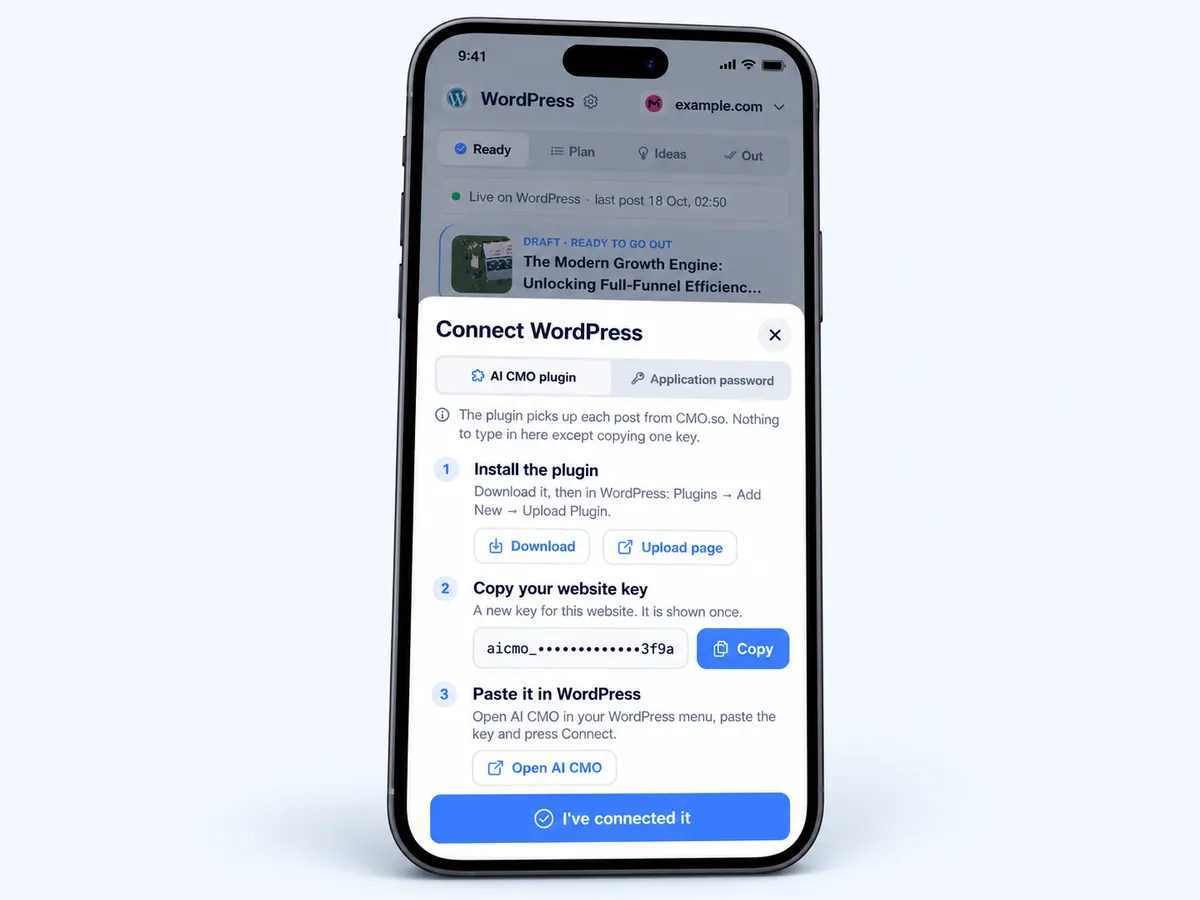
In the cmo.so app, go to Posts. On the Connect your website card tap Show me how, then choose WordPress (Plugin or app password).
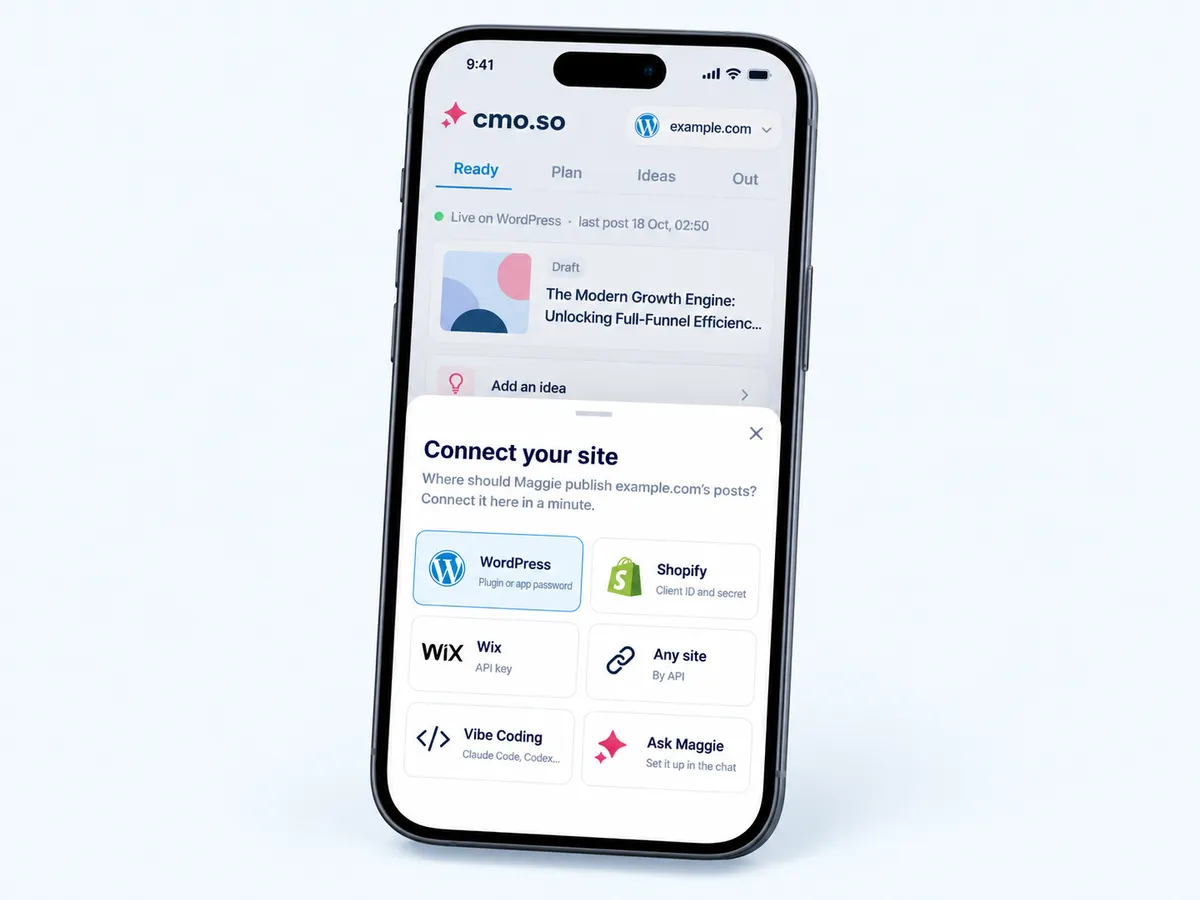
Download the plugin
Download it here, or under AI CMO plugin in the app tap Download. You get the AI CMO Agent Connector as a .zip file (WordPress 5.8 or newer, PHP 7.4 or newer).
Tip Website not verified yet? Tap Open the setup guide instead: installing the plugin proves the website is yours.
Download the plugin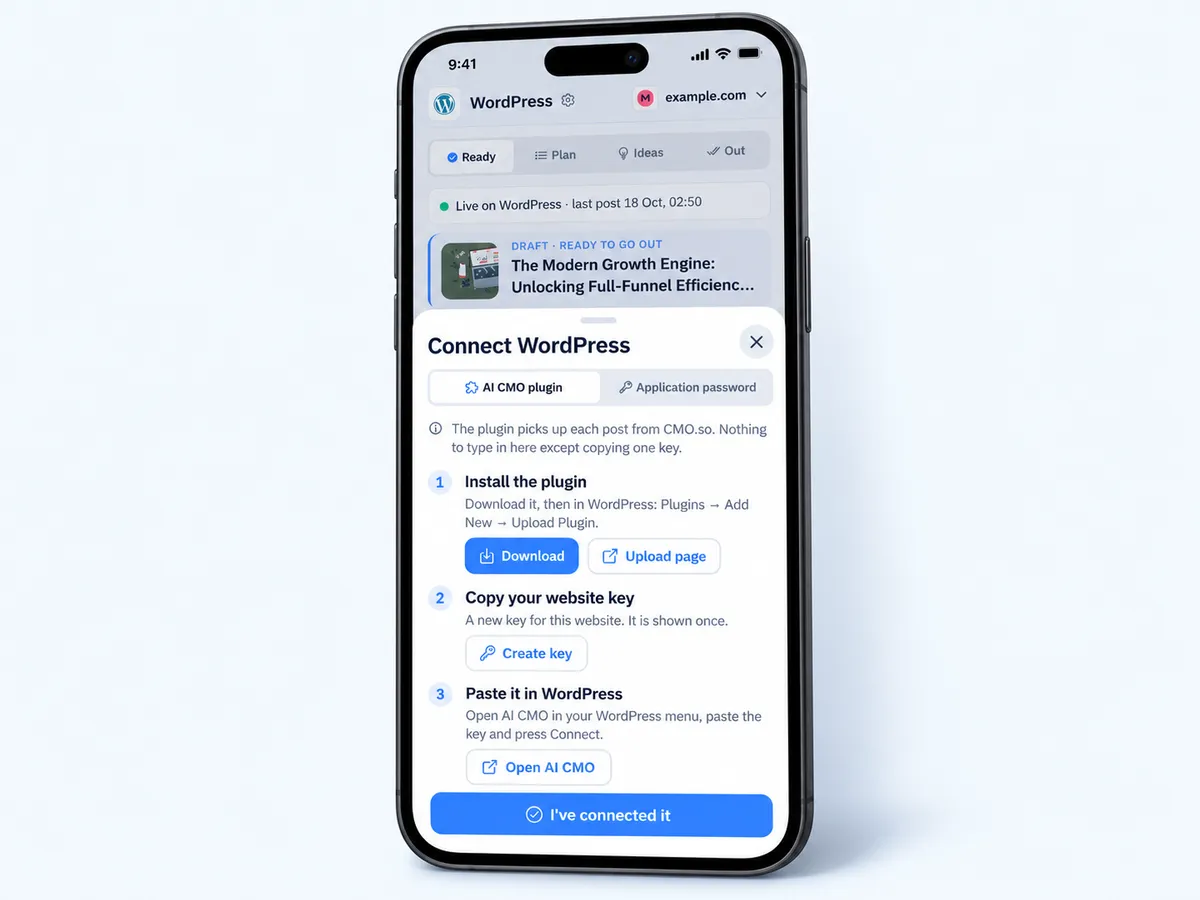
Upload it in WordPress
In your WordPress dashboard go to Plugins → Add Plugin and press Upload Plugin. Choose the .zip you downloaded and press Install Now.
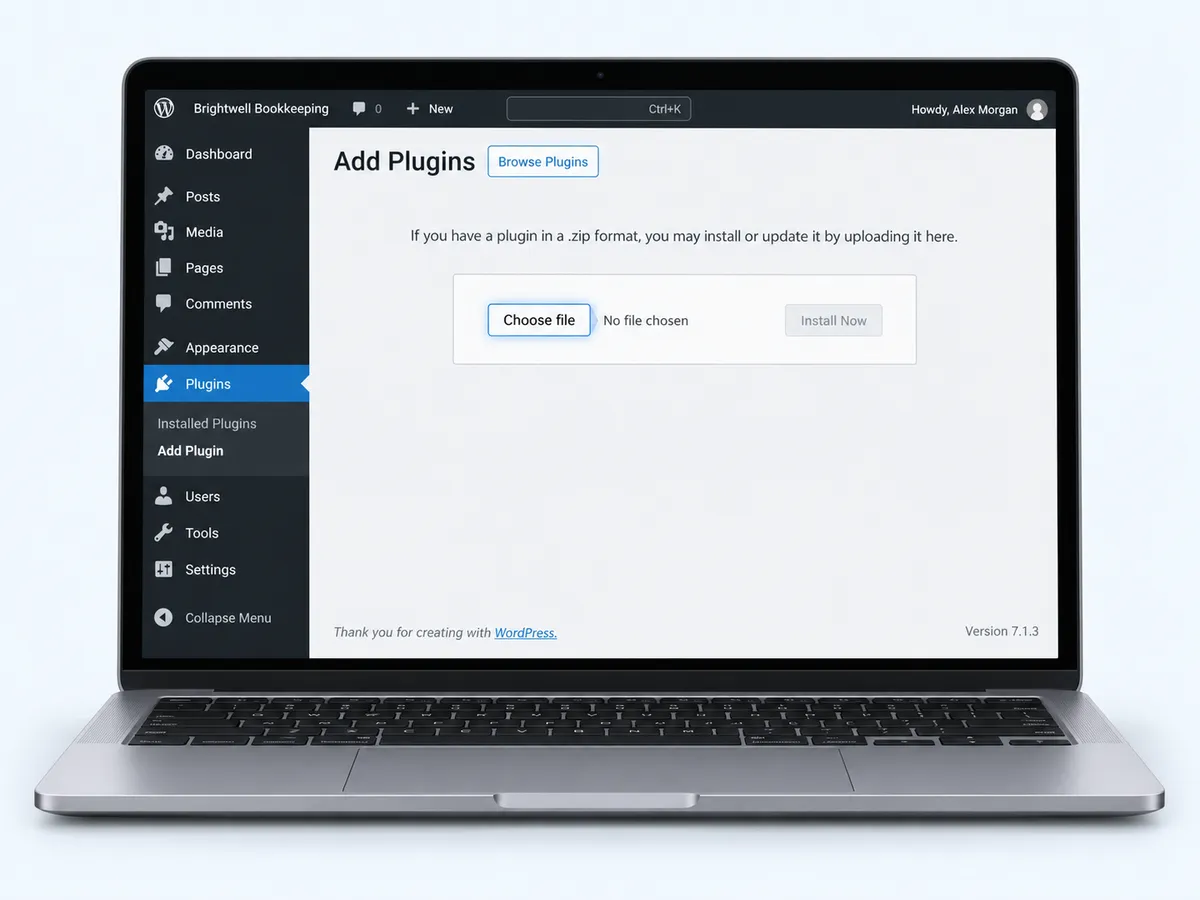
Activate the plugin
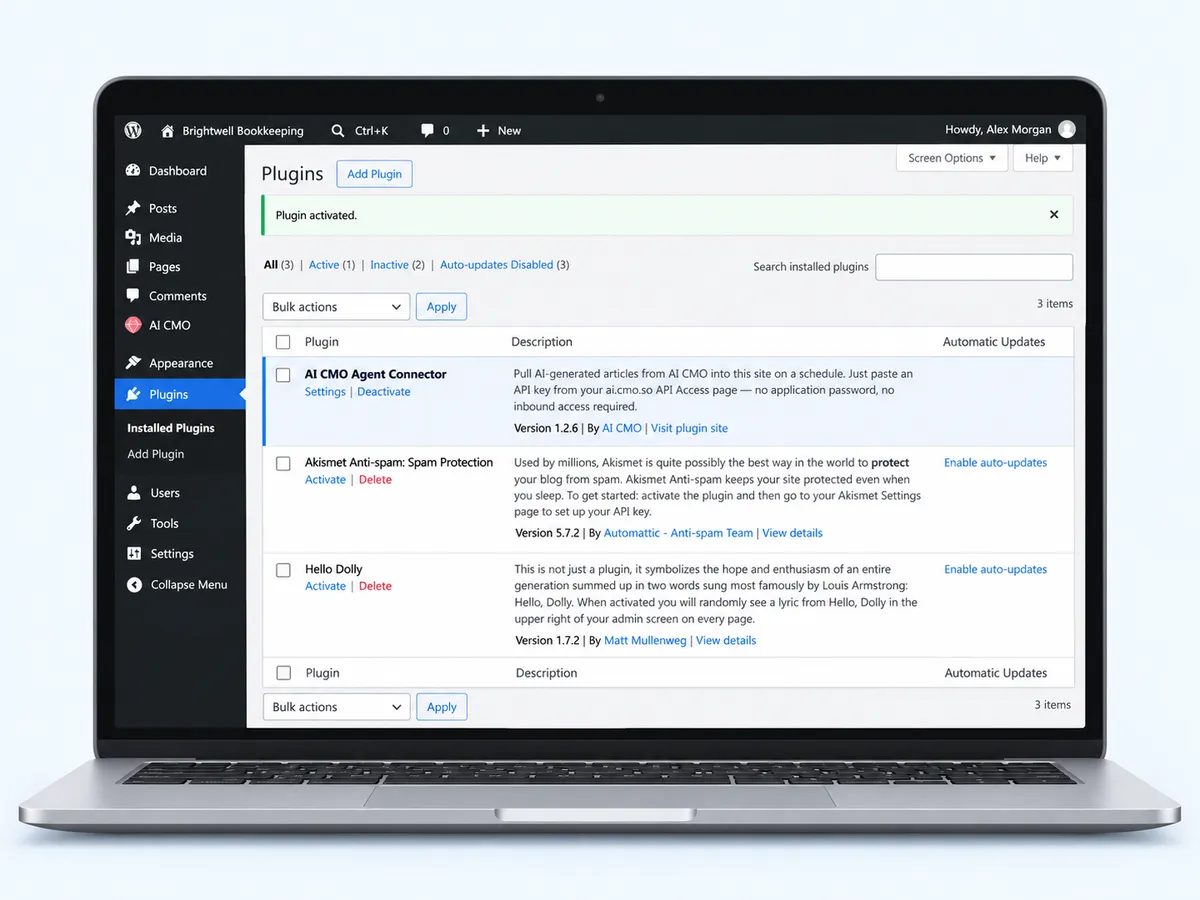
When WordPress has installed it, press Activate (or find AI CMO Agent Connector under Plugins and press Activate there).
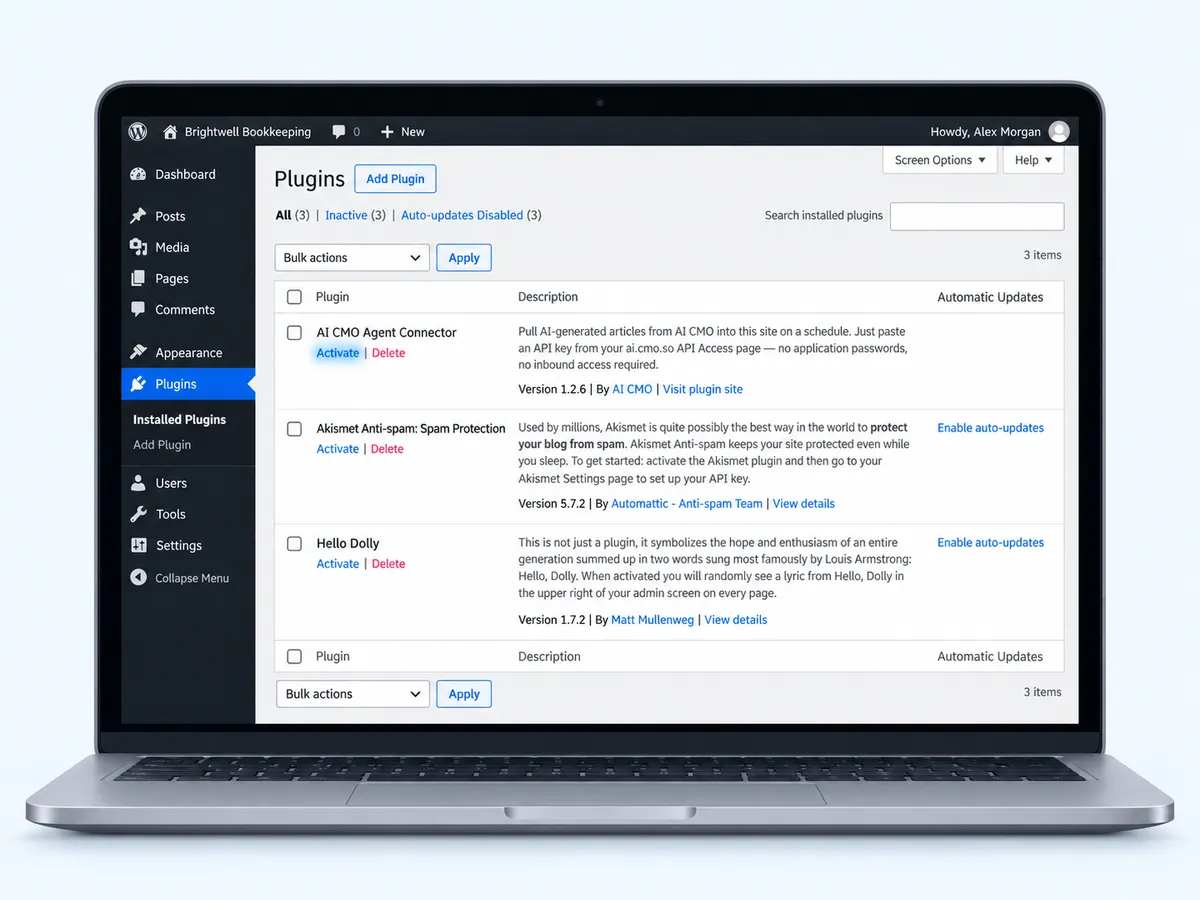
Find AI CMO in your menu
WordPress says Plugin activated and a new AI CMO item appears in the left menu, with Setup, Access, Posts, AI Visibility, Organic Traffic and SEO Audit.
Create your website key in the app
Back in the app, tap Create key under Copy your website key. It's a new key for this website and it's shown once, so copy it now.
Paste it and press Check connection
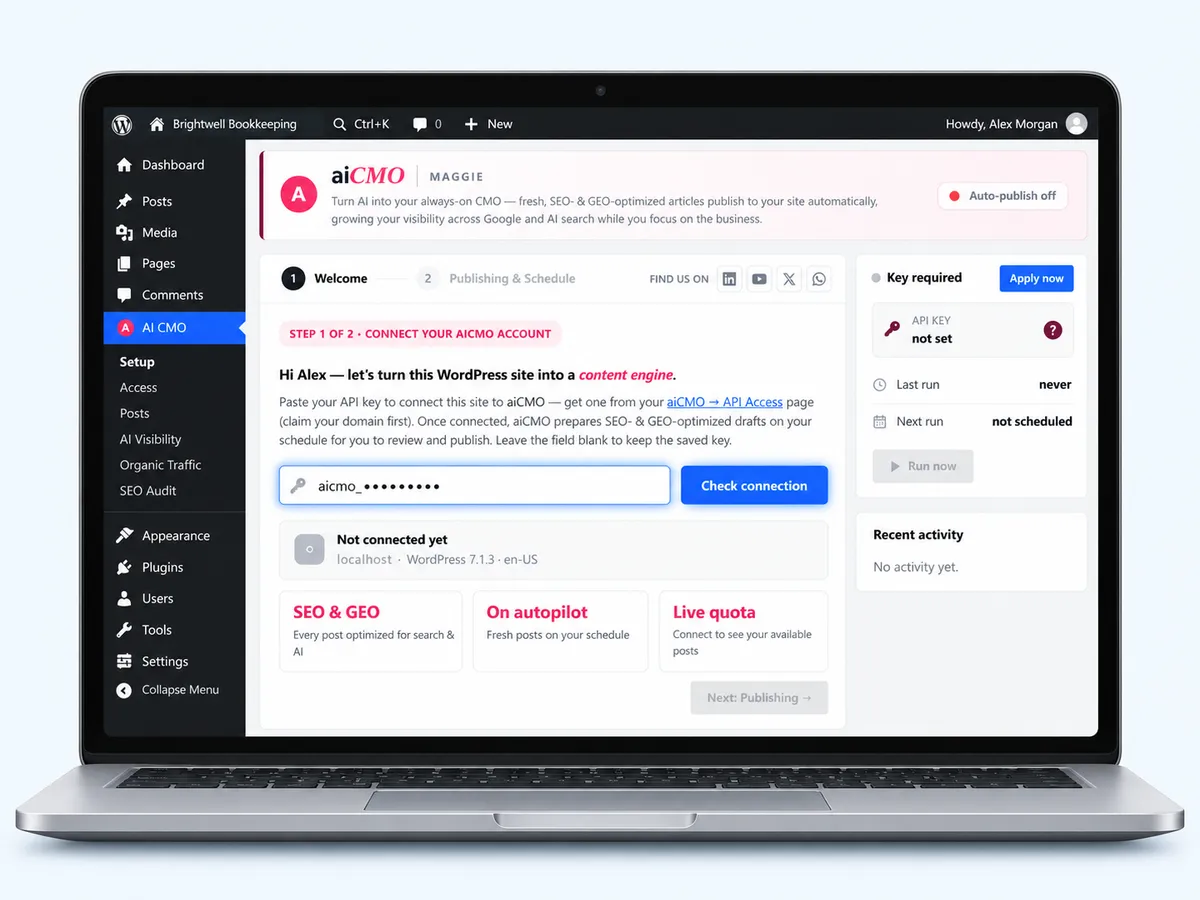
In WordPress open AI CMO → Setup, paste the key into the aicmo_… field and press Check connection.
See it connected
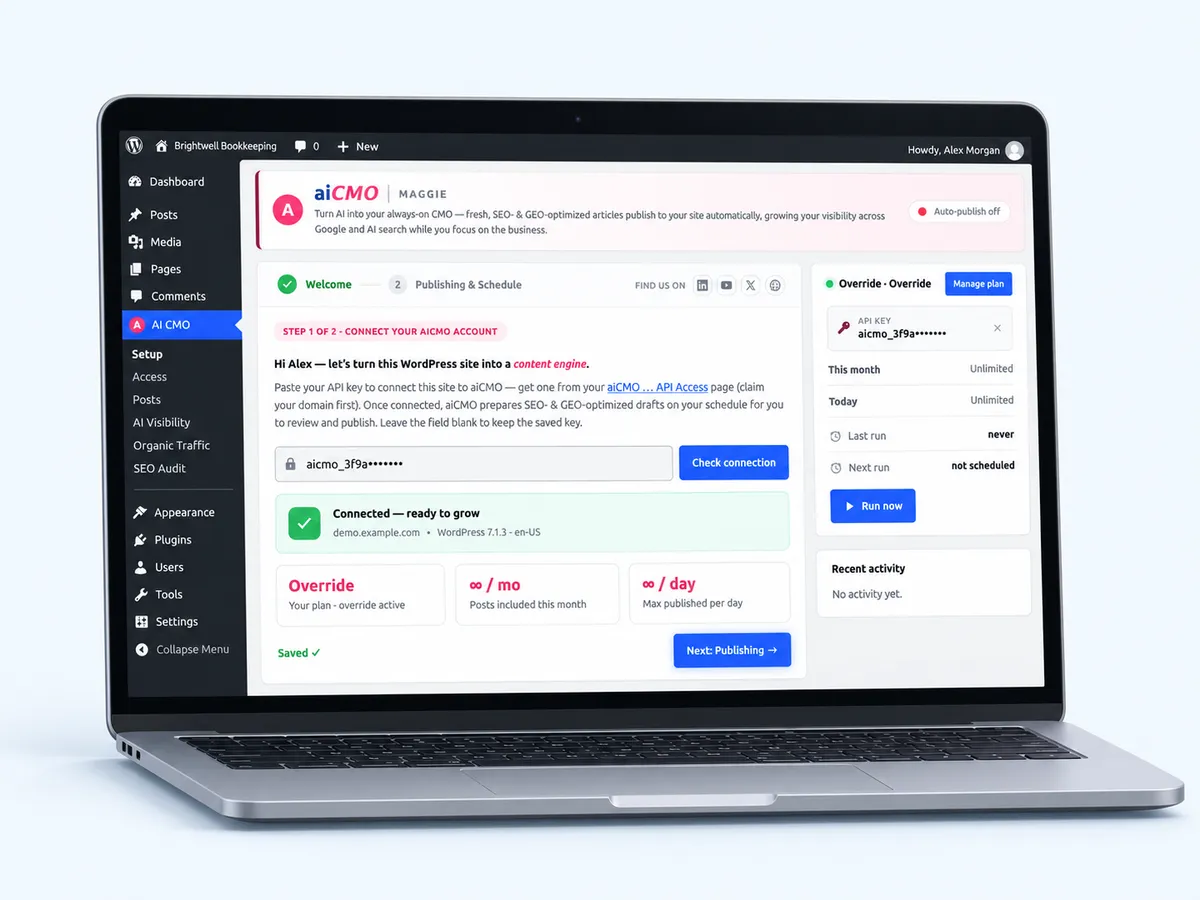
The plugin shows Connected — ready to grow with your website, your plan and how many posts it can publish this month and per day. The key is shown masked on the right.
Choose how posts land
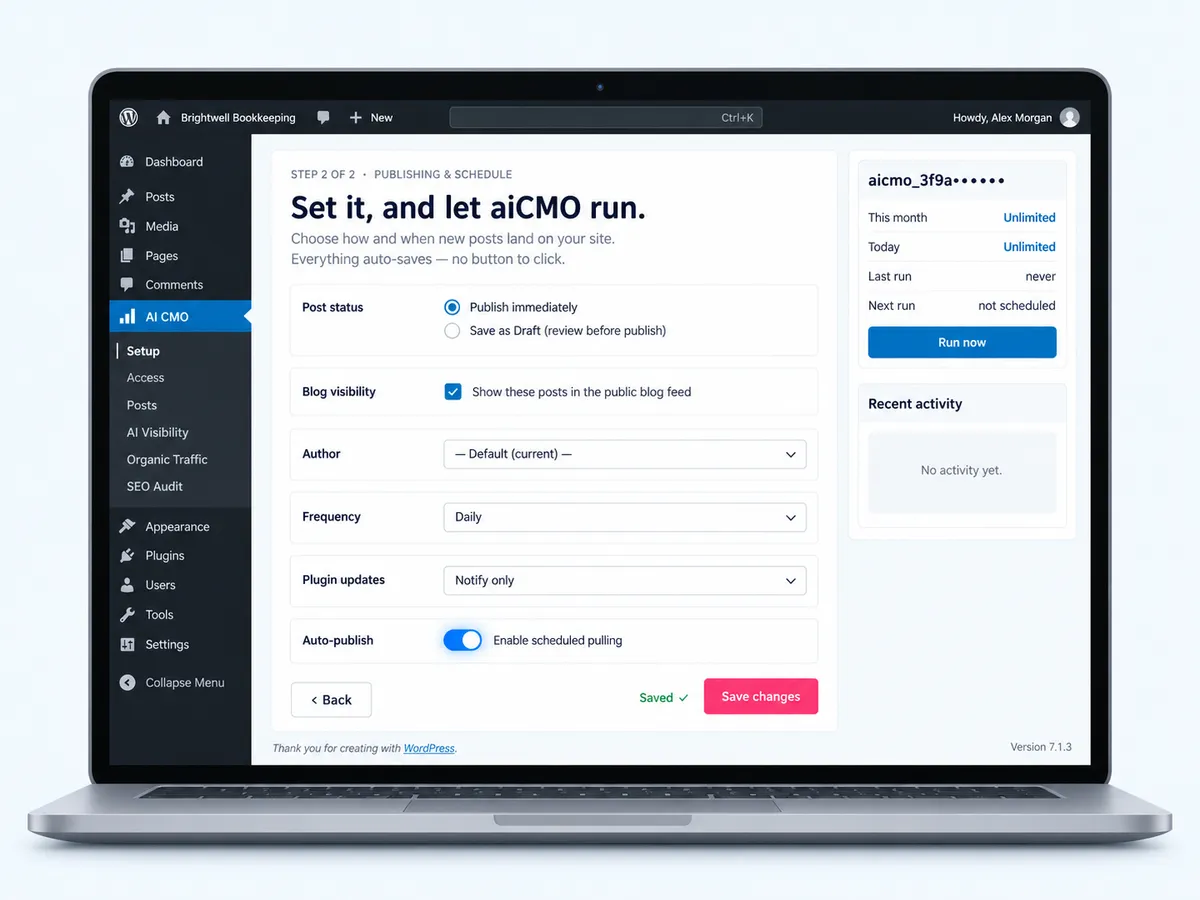
Press Next: Publishing → for step 2, Publishing & Schedule. Pick Publish immediately or Save as Draft (review before publish), the author, how often (Frequency) and whether posts show in your public blog feed. Everything auto-saves.
Tip Turn on Auto-publish (Enable scheduled pulling) when you're ready for posts to go out by themselves.
Tell the app it's done
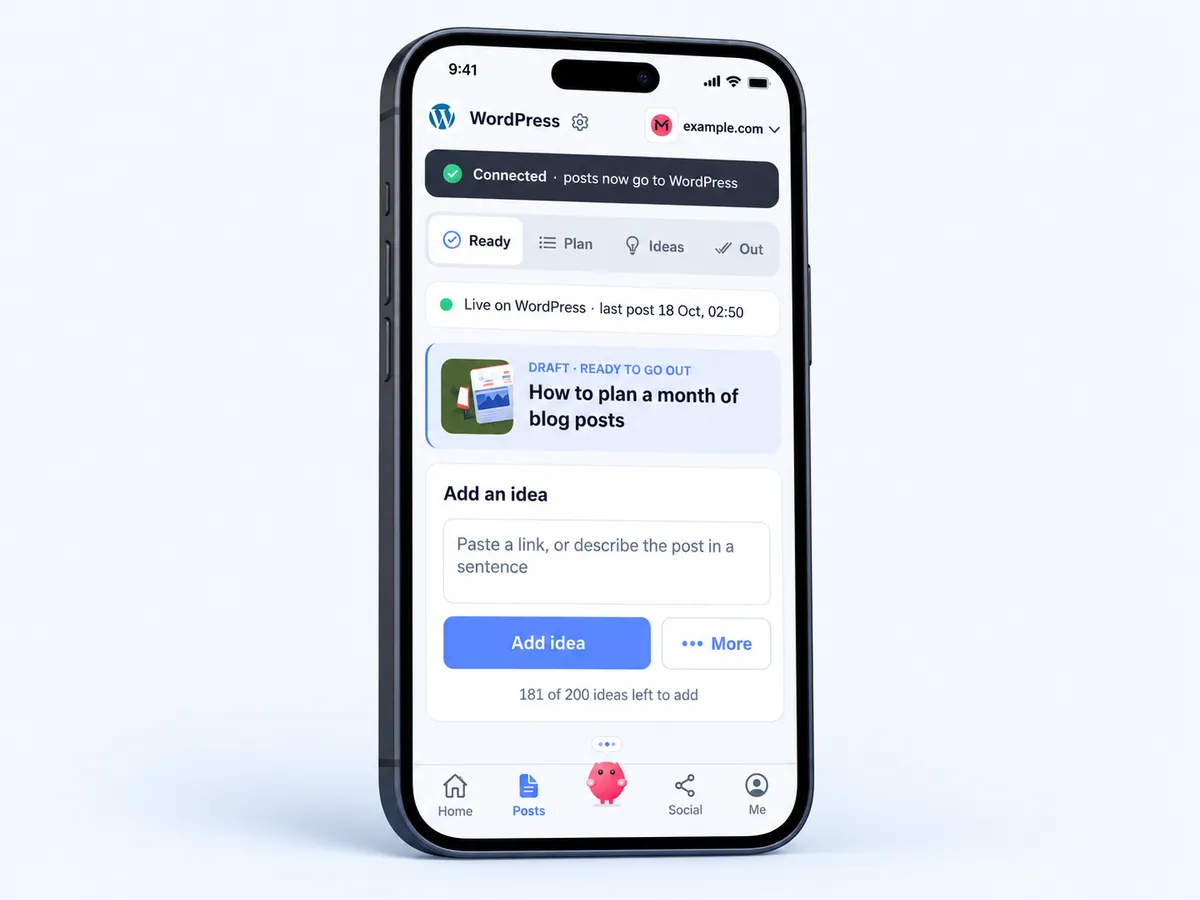
Tap I've connected it in the app. When the plugin answers you'll see Connected · posts now go to WordPress.
Let your team use it (optional)
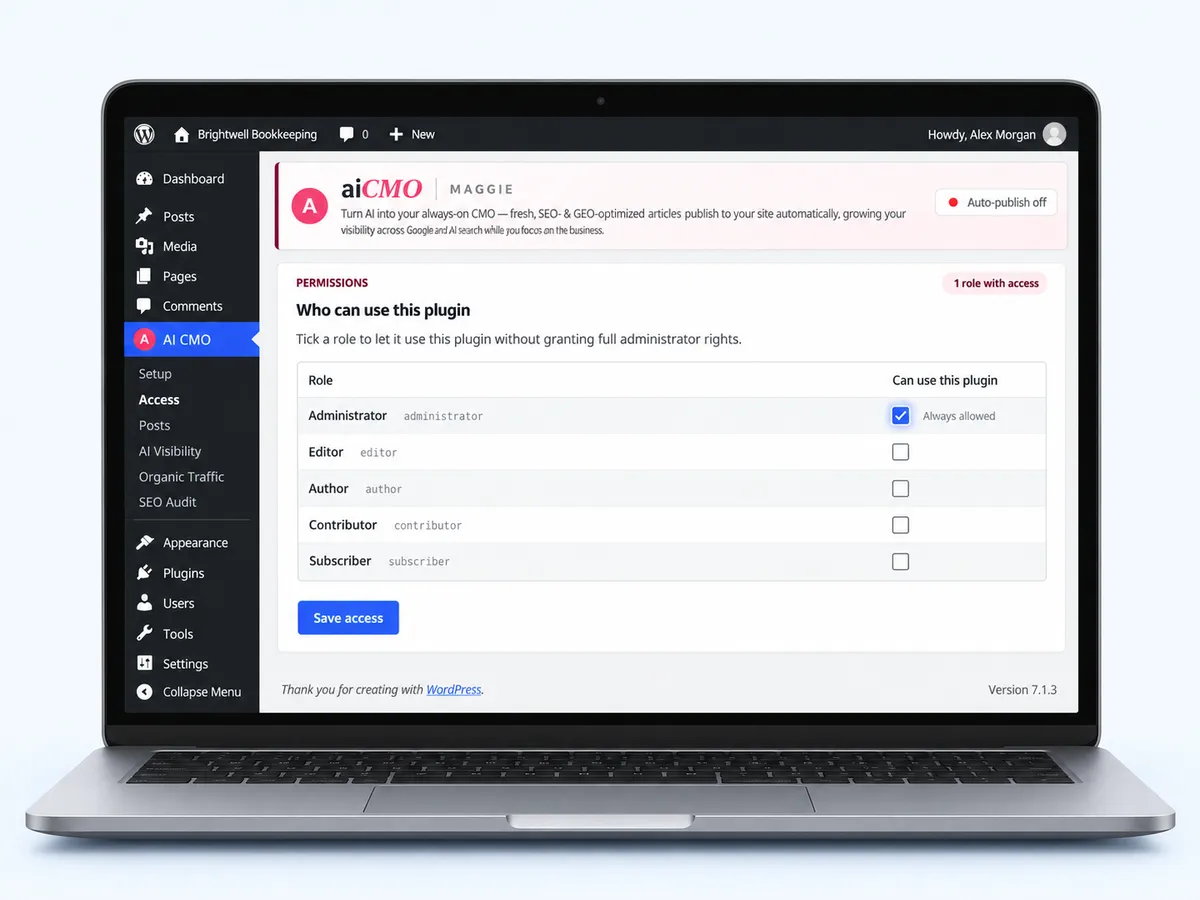
AI CMO → Access lets you pick which WordPress roles (Editor, Author…) can use the plugin without full administrator rights. Tick them and press Save access.
See results inside WordPress
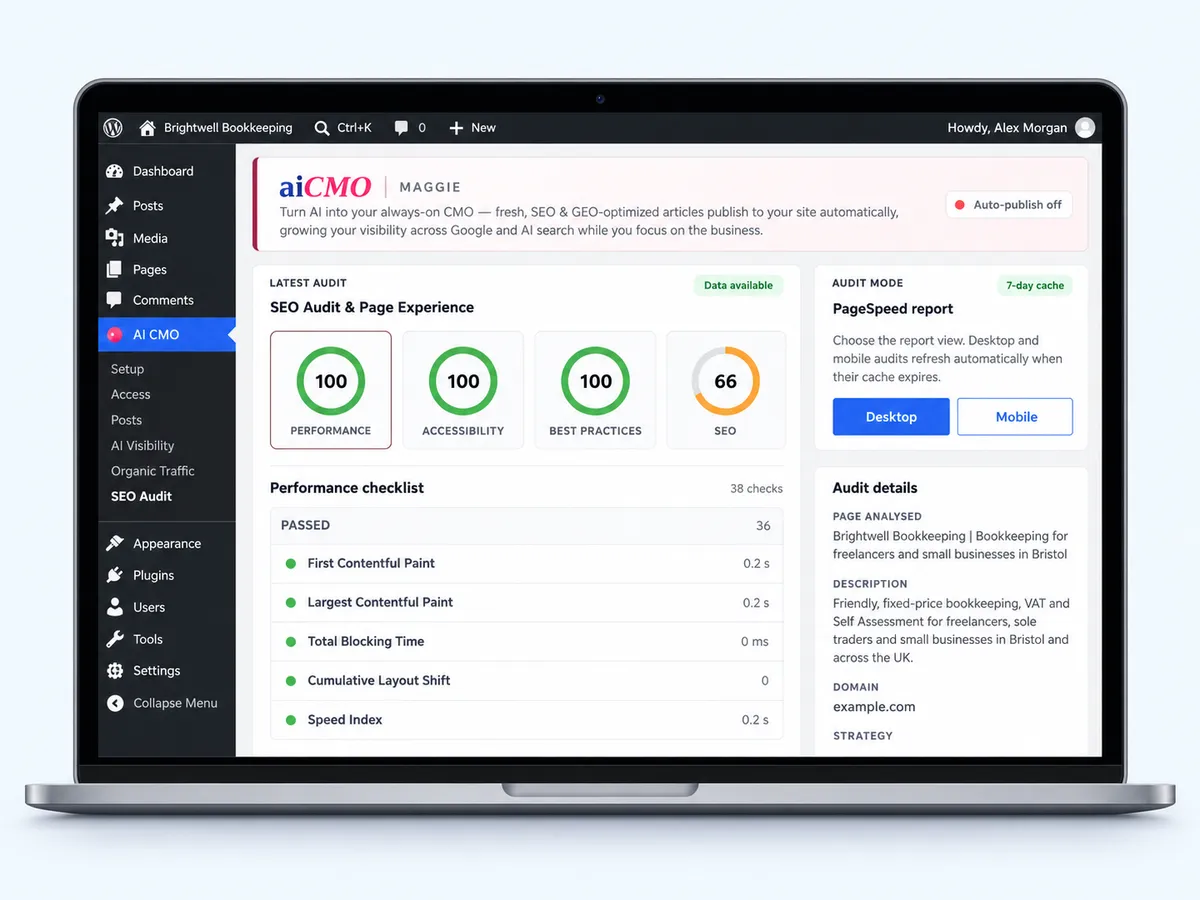
The plugin also shows AI Visibility (check a question people ask AI), Organic Traffic (connect Search Console) and an SEO Audit of your pages, so you can follow Maggie's work without leaving WordPress.
Connect WordPress with an application password
An application password lets cmo.so publish posts for one WordPress user. It isn't your login password, and you can revoke it in WordPress at any time.
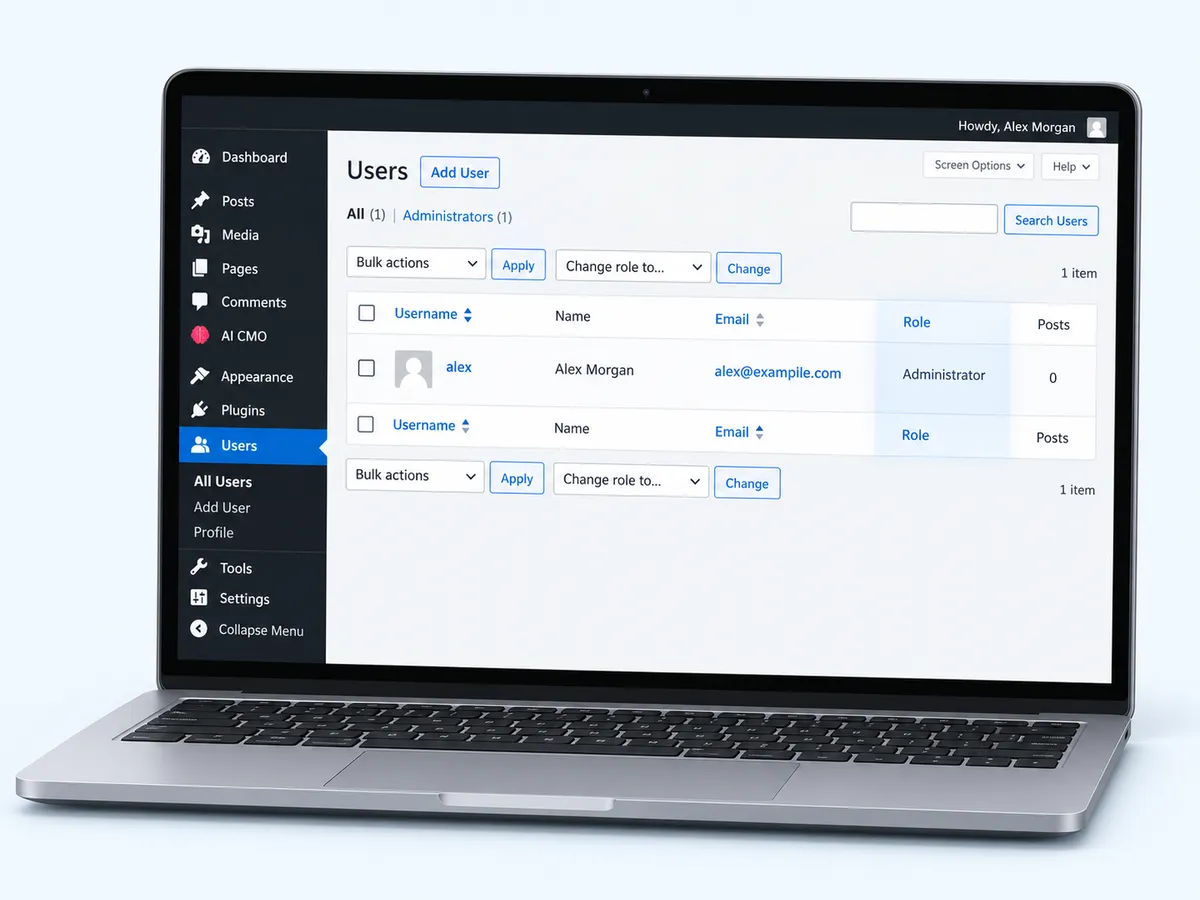
Check your user can publish
In WordPress go to Users and look at the Role column. Use an Author, Editor or Administrator: they can publish posts.
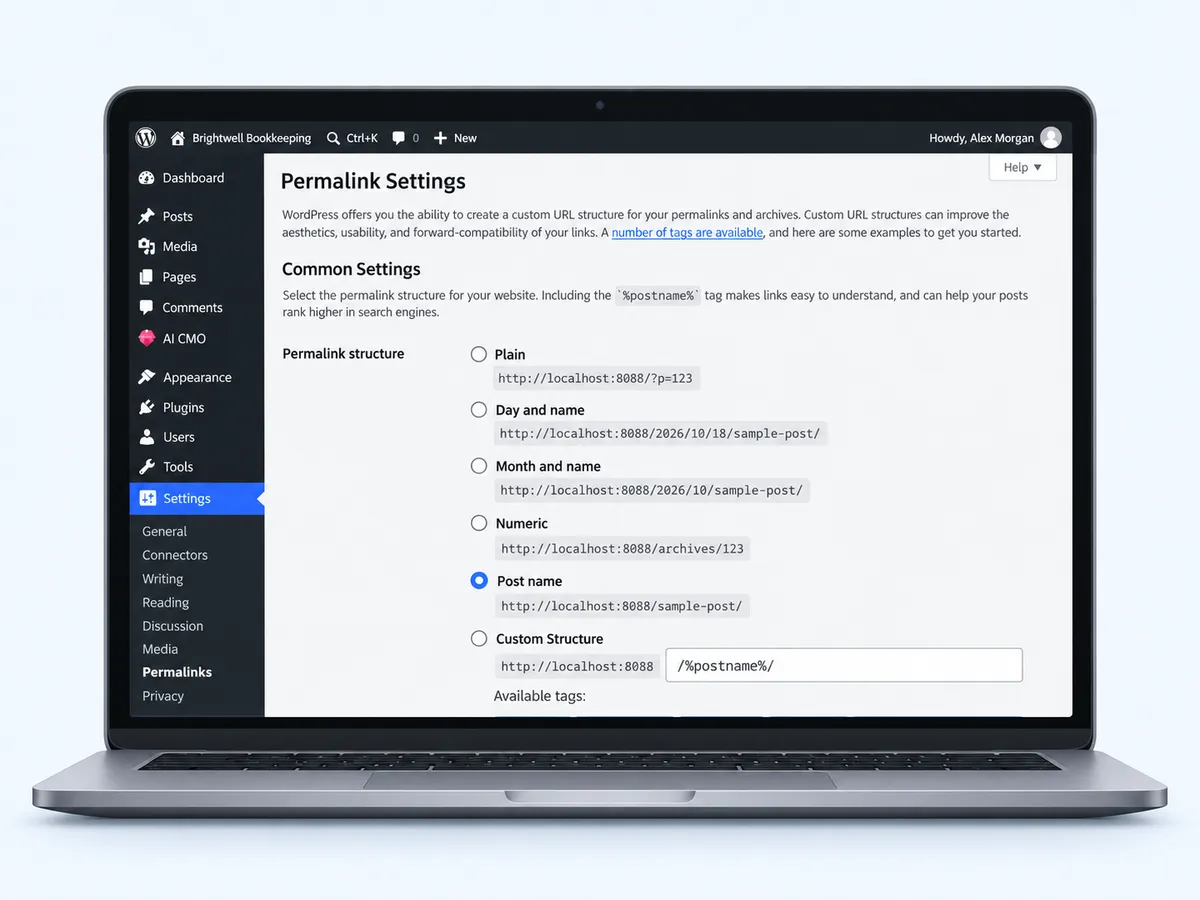
Use pretty permalinks
Go to Settings → Permalinks and pick any structure except Plain (Post name is a good choice), then save. The WordPress REST API needs it.
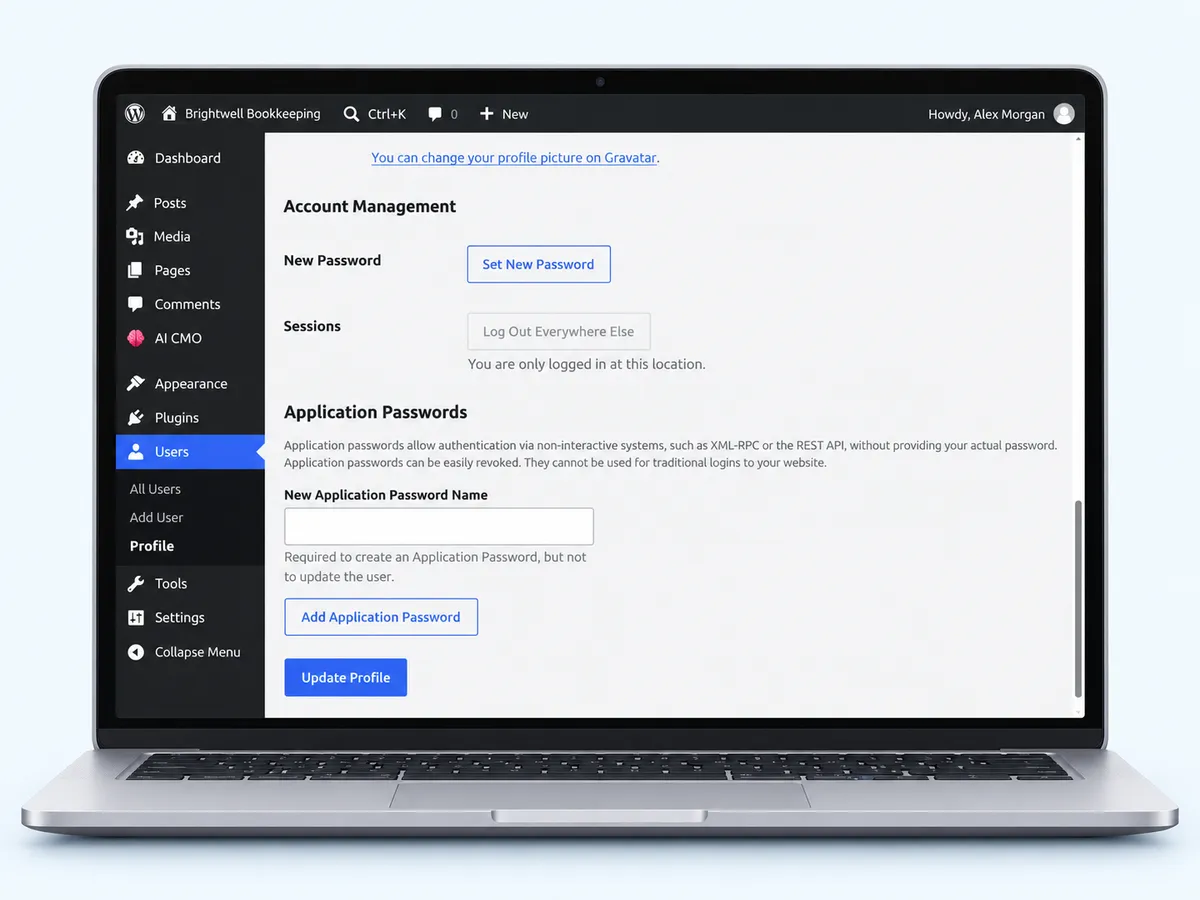
Open Application Passwords
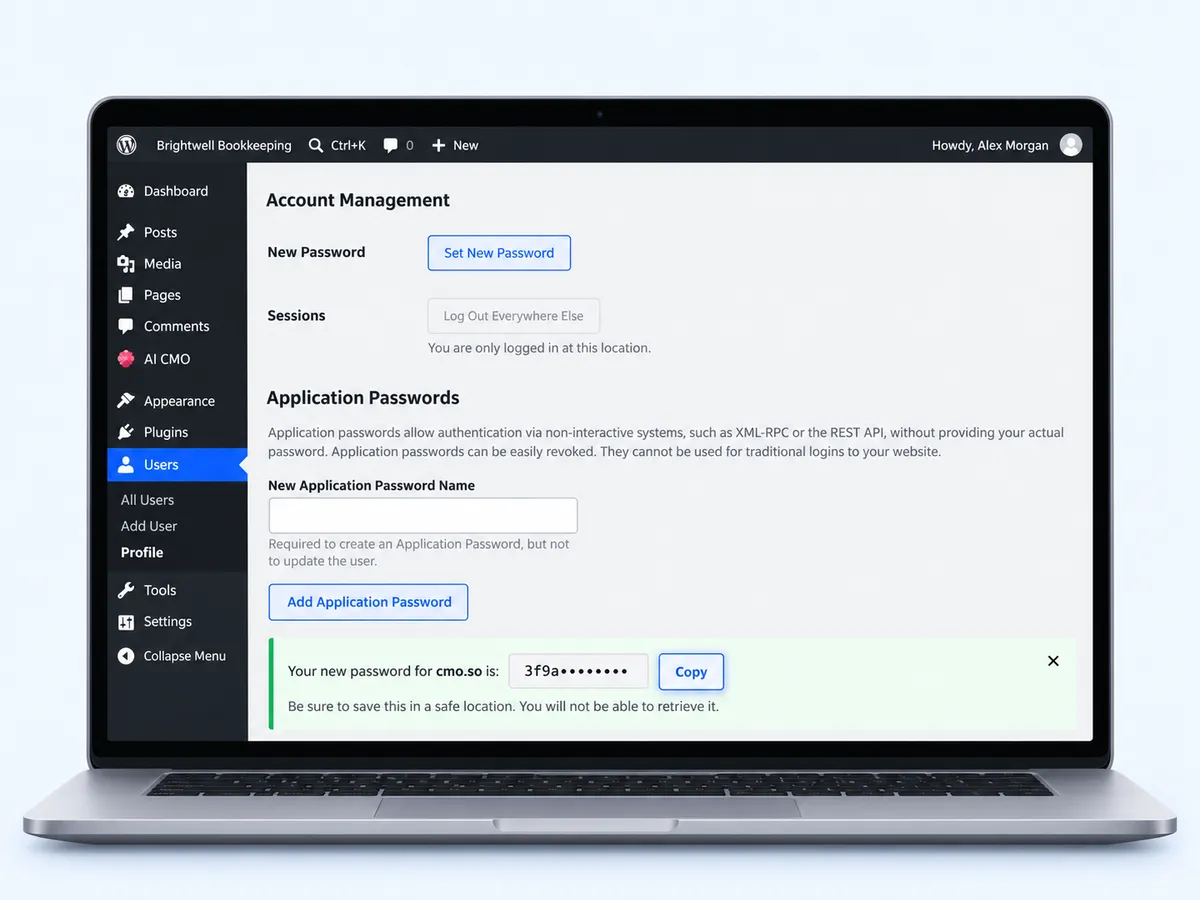
Go to Users → Profile and scroll to Application Passwords.
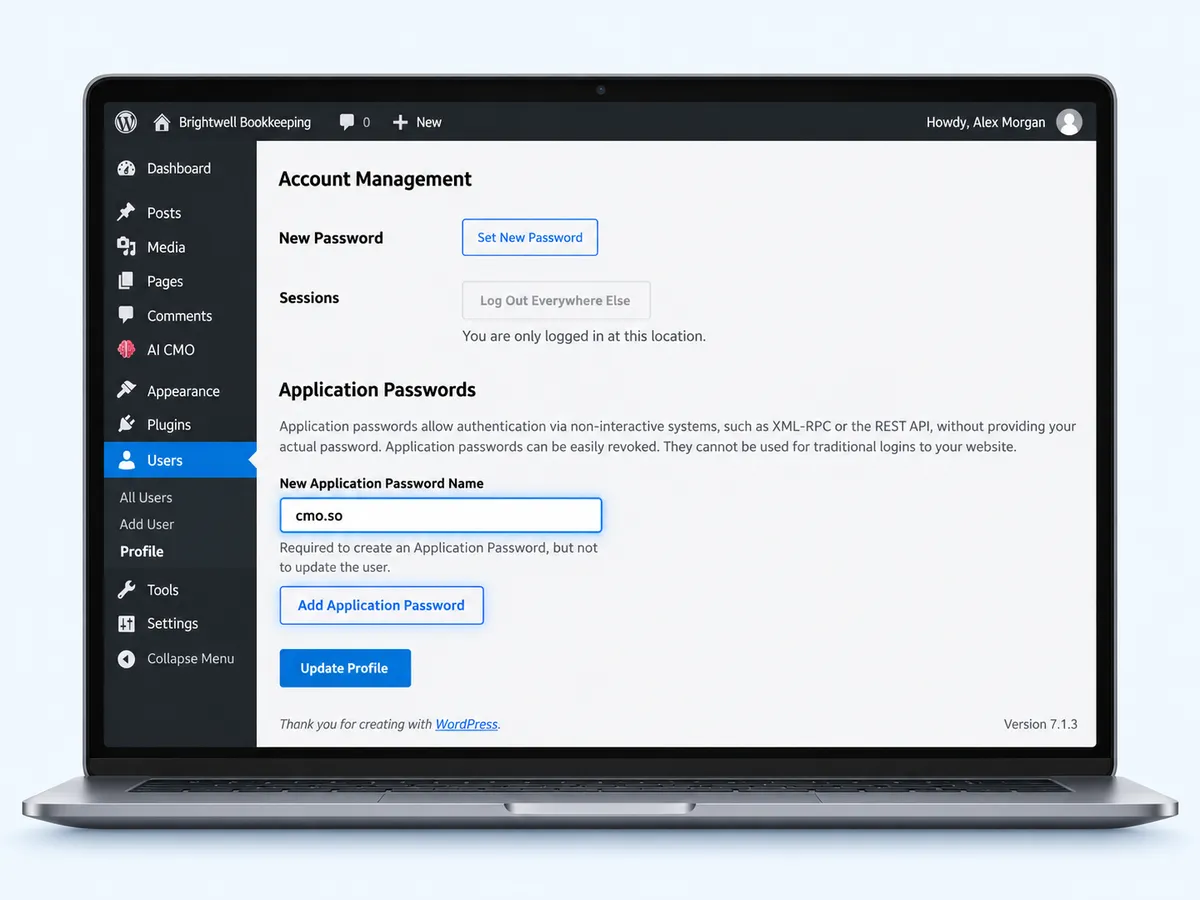
Name it cmo.so
Type cmo.so in New Application Password Name and press Add Application Password.
Copy the new password
WordPress shows Your new password for cmo.so once. Press Copy. It isn't your login password, and you can revoke it here at any time.
Tip Spaces in the password don't matter.
Choose Application password in the app
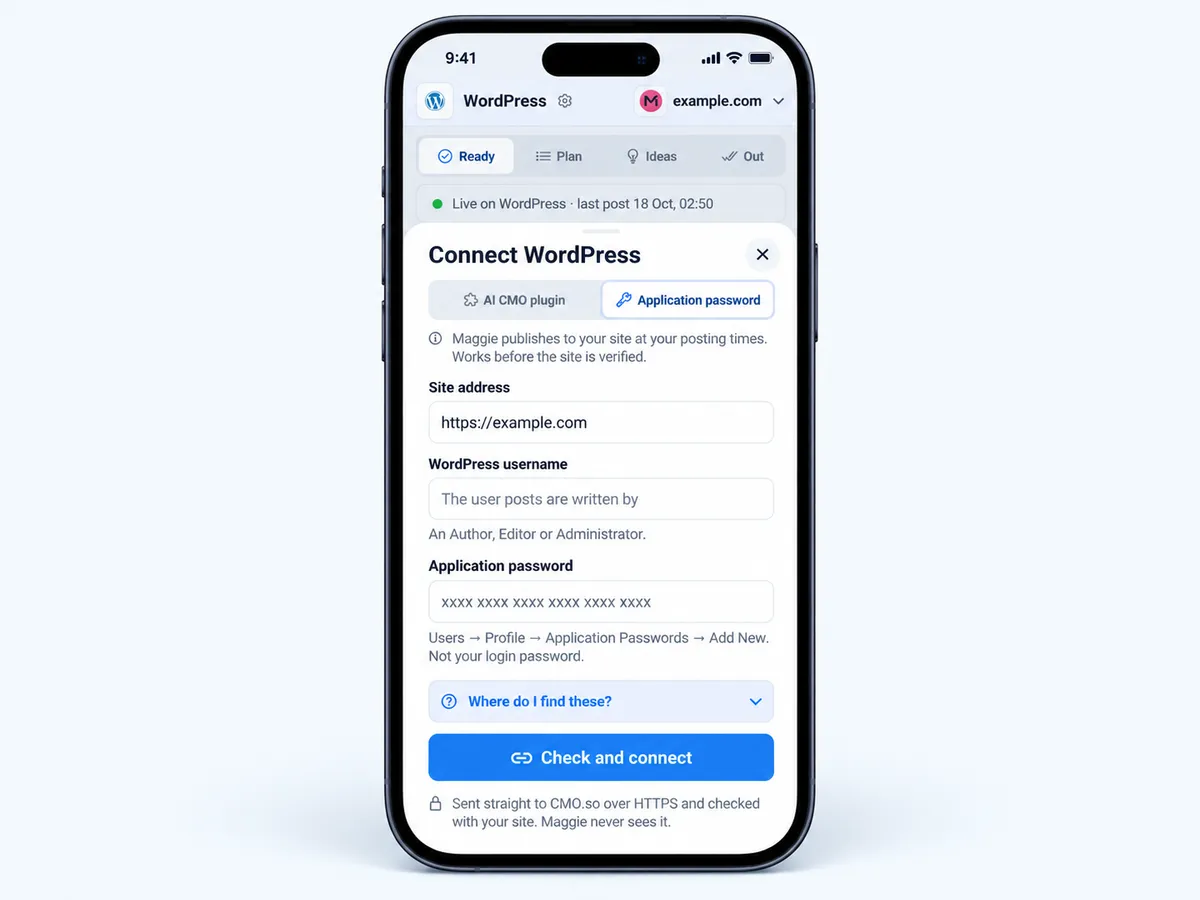
In the cmo.so app, go to Posts → Show me how → WordPress and switch from AI CMO plugin to Application password.
Fill in three fields
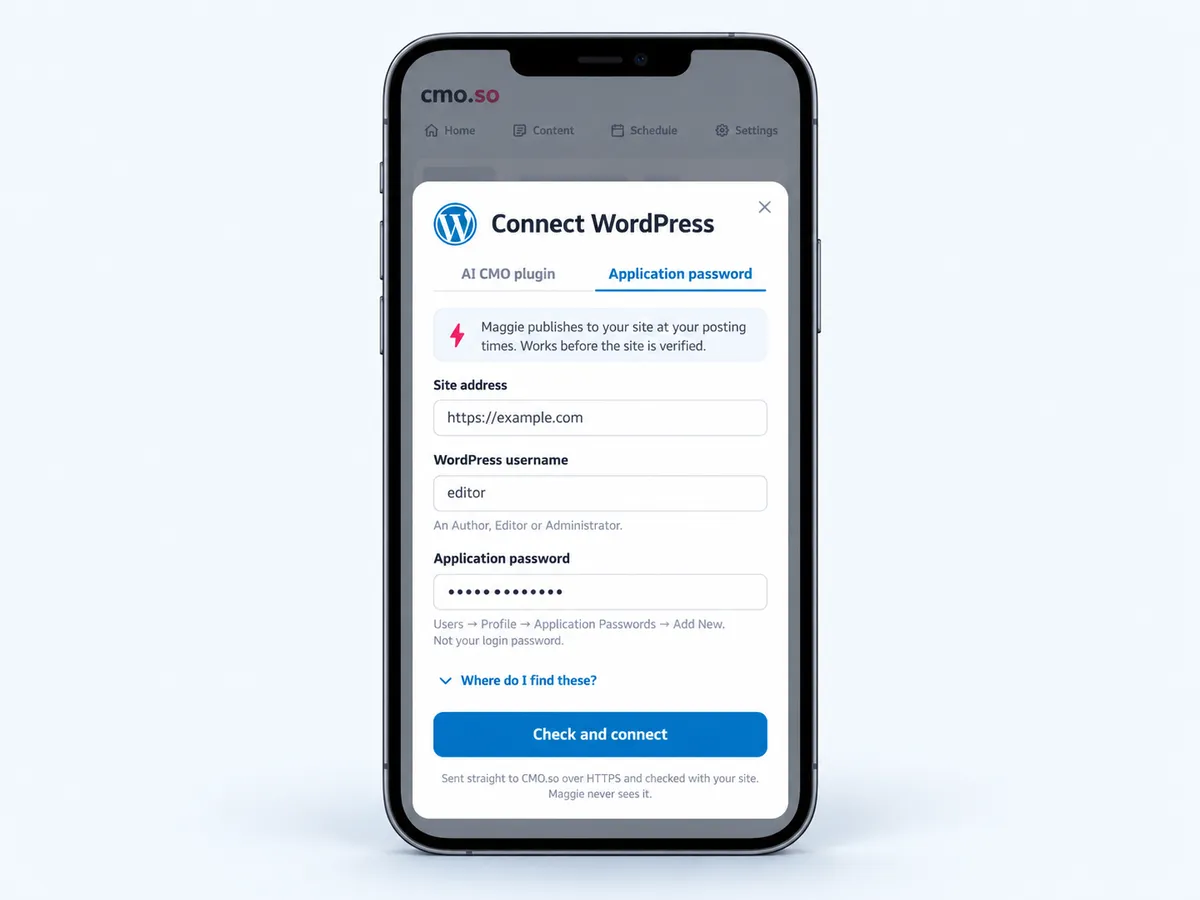
Site address is filled in for you. Add your WordPress username and paste the application password, then tap Check and connect.
cmo.so checks, then connects
Your details are checked with your site before anything is saved; a problem names the field to fix. When it works: Connected · posts now go to WordPress.
What you need
Five minutes, a WordPress login and the cmo.so app on your phone or at app.cmo.so.
- A WordPress site you can log in toAn administrator to install the plugin; an Author, Editor or Administrator for an application password.
- Your website added to cmo.soEnter it at cmo.so or in the app. Maggie builds your brand profile from it.
- A verified website, for the pluginVerify with the plugin itself, a work email, a DNS record (one tap with Cloudflare) or ask us. The application password works before that.
- The REST API reachableSecurity plugins and some hosts block /wp-json; allow it for logged-in users.
- Pretty permalinksAny permalink setting except Plain, under Settings → Permalinks.
Used by 600+ users and trusted by teams at
aeglesriphal.com
moonlakespa.com
shop.theteagroup.com
clo100.com
logtrics.io
mymorez.com
nextidal.com
otisapp.com
storaitelling.com
theheatpumps.co.uk
web-translations.com
exposeai.tech
orielipo.com
whitelabelcrowd.fund
elliptic.co
med.moonlakespa.com
netdex.co.il
orawellness.uk
reenest.com
syngage.ai
thepenthouseliving.com
zengolf.studio
imaintain.uk
rebuildingsociety.com
aurasocial.world
goaimex.com
moneyparents.com
newgenrenewables.uk
osmosisai.co
saunders.ac
teeza.app
thursdayclub.com
Your blog keeps itself up to date
Maggie plans topics from your brand profile and searches, writes each article and publishes it on WordPress at your posting times.
Articles that publish themselves
One a day to start. Your plan sets the ceiling, from 2 a day on Air to 96 a day on Elite, and you choose the pace under Posts per day.
Ready for search
Each article goes out with its title, a meta-description excerpt and a featured picture, so it looks finished on your blog and in Google.
Categories done for you
Maggie files each post under its topic and your brand category, and uses tags when your site doesn't allow new categories.
You stay in charge
Approve each post, or let it run. The content guard checks every post first and publishes anything it isn't sure about as a draft.
Older articles refreshed
Refresh older articles When I ask or Automatic: you pick the share of each day's posts and how old an article must be.
One switch to pause
Turn Publishing off and written posts wait in order until you turn it back on.
Your marketing team, in your pocket
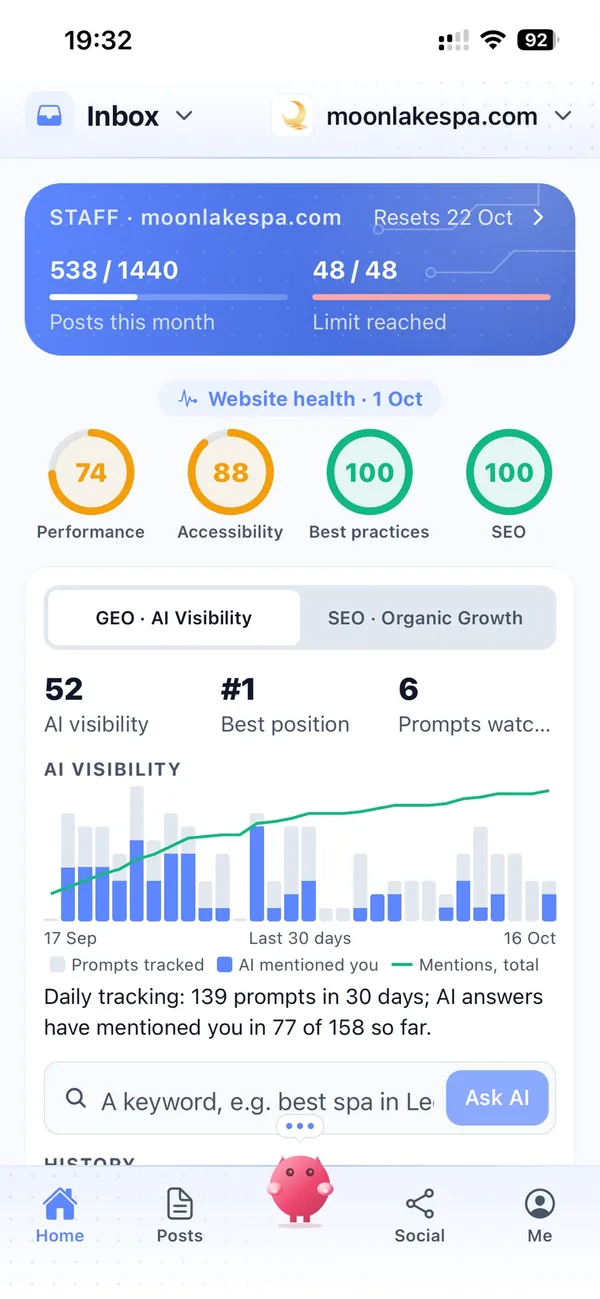
Real screens from the cmo.so app on iPhone.
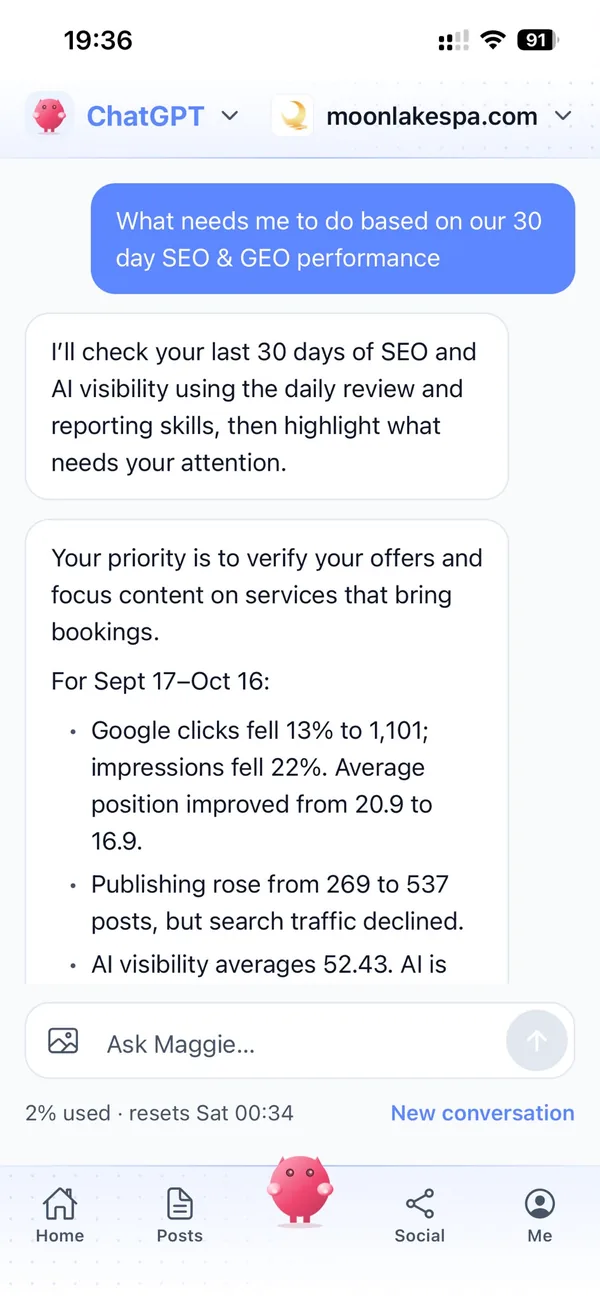
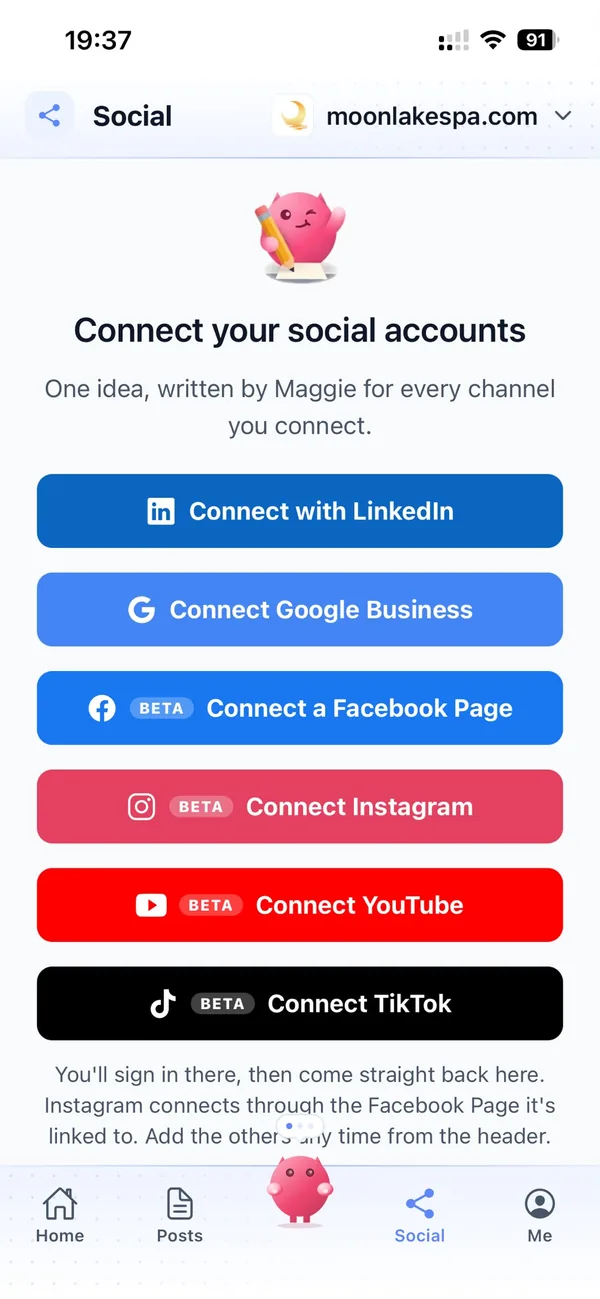
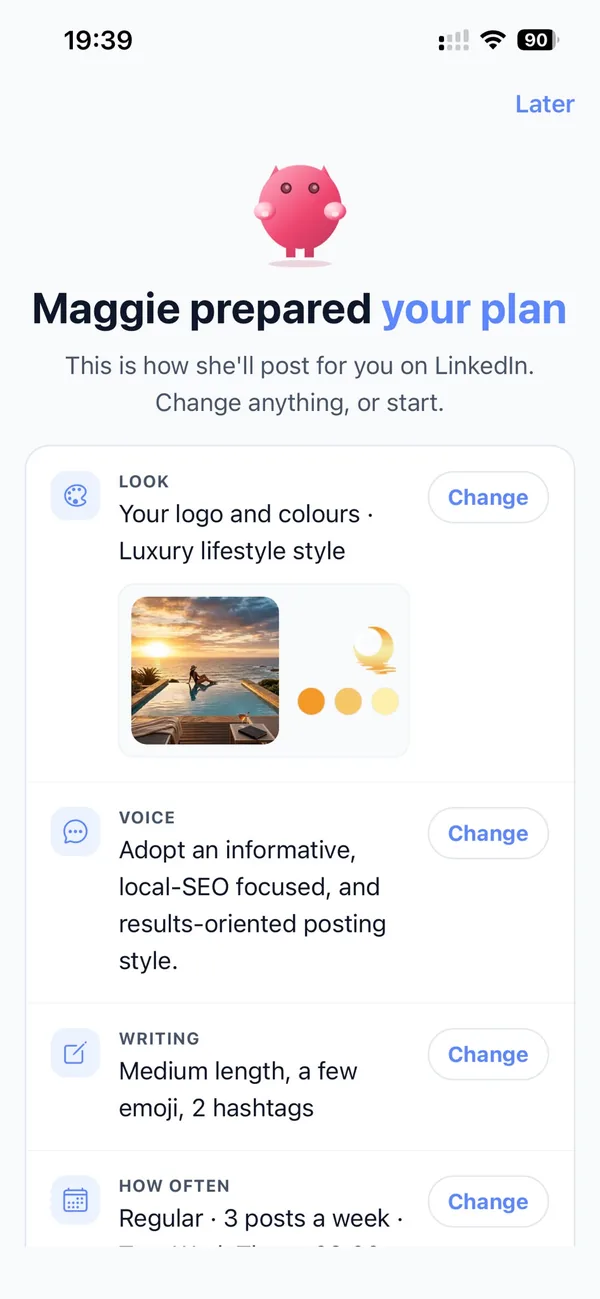
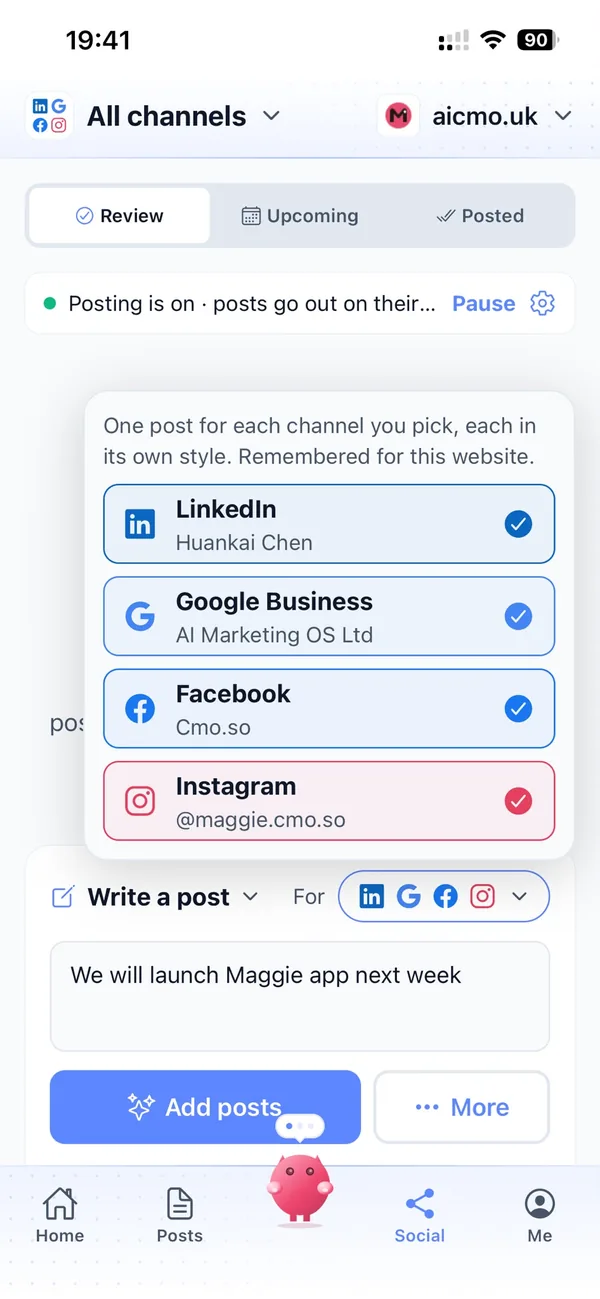
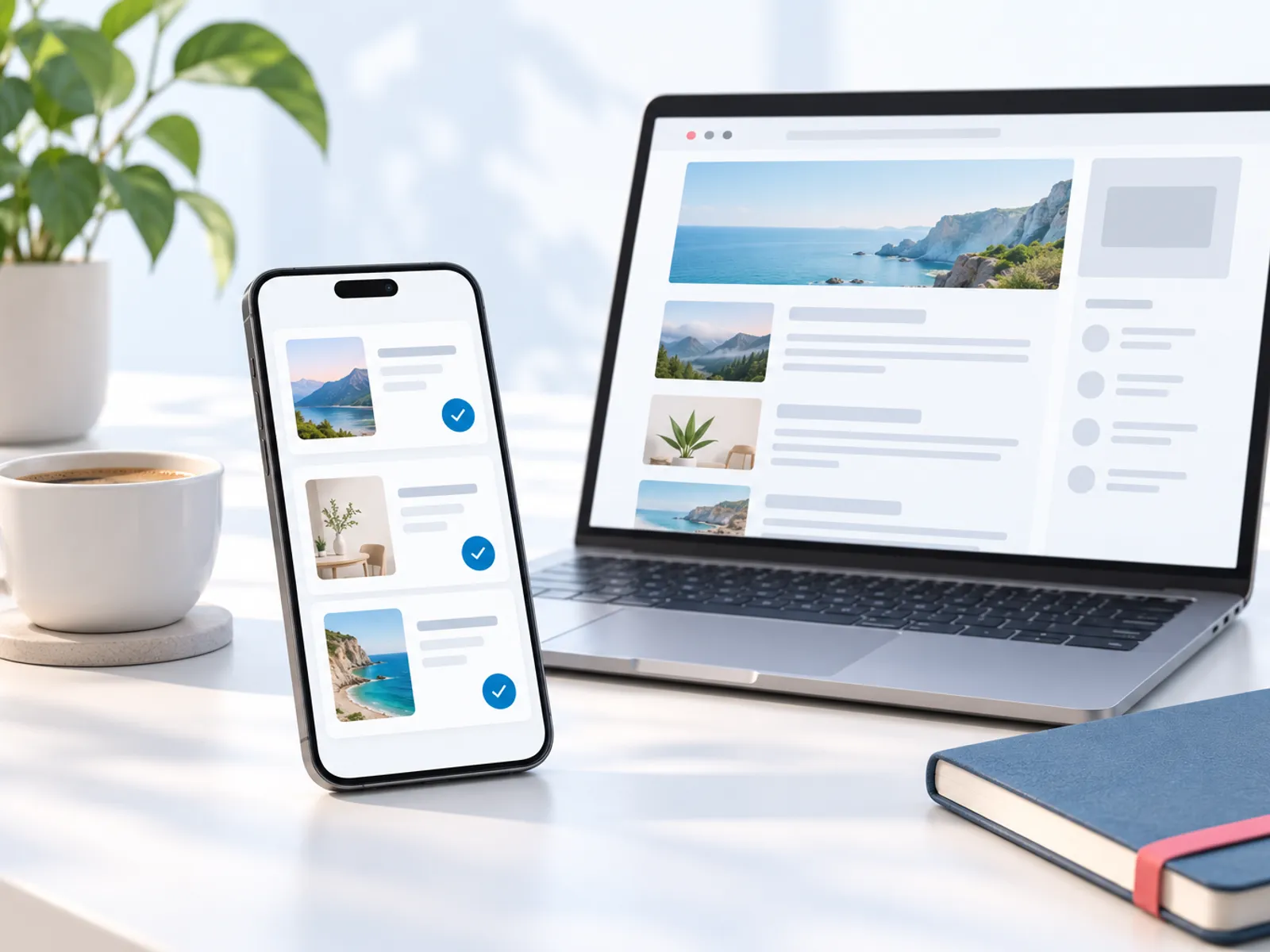
A week with Maggie on your WordPress blog
Monday morning, the app shows this week's articles under Posts → Ready. Each one has its title, picture and the search it's written for.
You open one, change a sentence in Edit and press Save. Another you send back with Rewrite and a note. The rest you leave as they are.
From then on nothing needs you. At each posting time the next article goes out on your WordPress blog, filed under the right category with its featured picture. If the plugin is set to drafts, it waits for you in WordPress instead.
When an article goes out, Posts → Out shows it with its live link, and once Search Console is connected you'll see which ones bring clicks.
Things to watch on WordPress
Security plugins can block posting
If connecting fails with a REST API message, allow /wp-json for logged-in users in your security plugin or firewall, then try again.
Some hosts strip the password header
Application passwords need the Authorization header. If your host removes it, use the plugin instead: it doesn't need it.
Low-traffic sites can miss a schedule
WordPress runs scheduled jobs when someone visits. The plugin's scheduled pulling keeps posts going out on time.
One place to publish
Connecting WordPress turns off any other website connection on cmo.so, so a post never goes out twice.
Passwords stay out of the chat
Keys and passwords go only into the connect form, straight to cmo.so over HTTPS. Maggie never sees them.
Revoke whenever you like
Delete the application password in your profile, or deactivate the plugin, and publishing stops at once.
WordPress and cmo.so
- Ways to connect
- The AI CMO Agent Connector plugin (key only), or an application password
- Plugin needs
- WordPress 5.8 or newer and PHP 7.4 or newer
- What's published
- Title, excerpt (meta description), featured picture, categories or tags, and the article
- Post status
- Published, or a draft when the content guard holds it (the plugin can save everything as drafts)
- How often
- 1 a day to start; up to your plan's daily limit (Air 2, Pro 12, Max 24, Ultra 48, Elite 96)
- Free posts
- 30 once your website is verified
- Older articles
- Rewritten when you ask, or automatically, and updated on your site
- Where you approve
- The cmo.so app on iPhone or at app.cmo.so, or by asking Maggie in ChatGPT or Claude
Cut the £5,900/mo marketing bill to £15/mo
Everything a marketing team does, done by Maggie.
| What needs doing | Without cmo.so | With cmo.so |
|---|---|---|
| Full-time marketing hire | £3,000/mo | Included |
| SEO and AI search (GEO) agency | £1,000/mo | Included |
| Content writer, AI-assisted | £500/mo | Included |
| Social media manager, freelance | £800/mo | Included |
| Designed pictures for every post | £300/mo | Included |
| SEO and GEO softwareRank tracking, site audits, AI visibility | £250/mo | Included |
| AI writing and image tools | £50/mo | Included |
| Working hours | Office hours | 24/7 |
| Total per month | £5,900+ | From £15/mo |
Typical UK costs for a small business in 2026, with AI already cutting freelance rates. Estimates only; your own quotes will vary.
- 5 social posts, 30 once verified
- 15 Maggie messages a day
- Upgrade any time
- 12 posts a day
- 150 Maggie messages a day
- All channels
- 96 posts a day
- 1,000 Maggie messages a day
- All channels
Per website, billed monthly. Blog and social posts share one allowance; your best plan sets how much you can talk to Maggie across all your websites.
WordPress auto-publishing: your questions
Still unsure?
Which is better, the plugin or an application password?
The plugin, if you can install plugins. You paste one website key, no password is shared, and the plugin collects each article on its own schedule, so nothing has to reach into your site.
Use an application password when you can't install plugins or your website isn't verified yet. It's tied to one WordPress user, works with any host that allows the WordPress REST API, and can be revoked in your profile at any time.
Does it work with my theme and SEO plugin?
Yes. Each article is a normal WordPress post with its title, excerpt, featured image, categories (or tags) and body, so your theme shows it like any other post and your SEO plugin can read it.
The excerpt is written as a meta description, and the article's headings, lists and links are clean HTML.
Can articles land as drafts instead of going live?
Yes. With the plugin, set AI CMO → Setup → Publishing & Schedule → Post status to Save as Draft and every article waits in WordPress for you to publish. With either way of connecting, the content guard saves anything it holds as a draft.
Drafts suit you if you like a final look in WordPress itself, for example to add an internal link or see how your theme shows the post. Approving in the app and then publishing from WordPress gives you two checks. If you connect with an application password, keep review on in the app instead: articles wait in Posts → Ready, and only what you approve goes out.
What if connecting fails?
cmo.so checks the details with your site before saving and names the field to fix. The usual causes are a security plugin or firewall blocking /wp-json (allow the REST API for logged-in users), a host stripping the Authorization header (use the plugin instead), Plain permalinks, or a user without the right to publish (use an Author, Editor or Administrator).
Read the message the app shows; it points to the field to fix. If you're using an application password and your host strips the Authorization header, the plugin avoids the problem, because it doesn't need that header. Once connected, a low-traffic site can still miss a schedule, since WordPress runs scheduled jobs when someone visits. The plugin's scheduled pulling keeps posts going out on time. Still stuck? Ask Maggie to talk to a person.
How many articles will Maggie publish on WordPress?
New connections start at one article a day. You choose Posts per day in Publishing settings, up to your plan's limit: 1 before a plan, then 2 (Air), 12 (Pro), 24 (Max), 48 (Ultra) or 96 (Elite).
Each delivered article uses one post from your monthly allowance, and the app shows what's left. Turn Publishing off and written articles simply wait in order.
Can I edit an article before it reaches WordPress?
Yes. Open it in Posts → Ready: switch between Preview and Edit, change any words and Save. Rewrite asks Maggie for a new version with your note, Fix Markdown tidies the formatting, and Publish now sends it straight away on connections that support it.
Ideas for future articles sit in Posts → Ideas, where you can add your own, reorder the plan or delete any you don't want.
Will Maggie update older articles on WordPress?
If you want her to. In Publishing settings, Refresh older articles can be Off, When I ask or Automatic. Automatic uses a share of each day's posts (10 to 50%) for rewrites of articles older than 30, 60, 90 or 180 days.
Rewrites keep the same address, so links and search history stay; the Rewrite queue in Me shows what's suggested and what has been rewritten, and Search Console data steers which articles need it most.
What does the content guard check before a WordPress post goes out?
When it's on, the content guard reads each post before it goes out and checks it against your industry's rules (financial, medical, insurance, legal or education) and any rule you write yourself, such as never naming a competitor.
A post that may break a rule is held, as a draft on your website or in Review for social, with the reason and a suggested rewrite, even if posts normally go out on their own. You can see what it held and why in Publishing settings.
Can I check every WordPress post before it goes out?
Yes, and that's how it starts. New posts wait in the app (Posts → Ready for articles, Social → Review for social posts) until you approve them. You can edit any post, ask Maggie to change it in your own words, or delete it.
When you trust the results, switch the channel to go out on its own; the content guard keeps checking each post first and holds anything it isn't sure about. You can switch back, or pause, at any time.
How soon will WordPress bring results?
Your brand profile and the first drafts are ready within minutes of entering your website, and the first posts can go out the same day once you approve them.
Search traffic builds over weeks to months as Google and AI assistants find and trust your pages; social reach grows with regular posting. Connect Search Console to see which posts bring clicks, and Maggie uses it to choose what to improve.
Do I need to verify my website first?
Verifying proves the website is yours. It unlocks your 30 free posts and, for some connections, publishing itself. You can verify with a work email at your domain, a DNS TXT record (one tap if your domain is on Cloudflare), the WordPress plugin, or by asking us to check by hand, usually within one working day.
Free email addresses such as Gmail or Outlook can't be used for the email check.
Can I manage WordPress from my phone?
Yes. Everything on this page works in the cmo.so app on iPhone and on the web at app.cmo.so: connecting, approving, editing and pausing.
You can also ask Maggie from ChatGPT or Claude through the cmo.so connector, for example to see what's waiting for you or to change a post, and she shows a card before she changes anything.
Connect the rest of your marketing
Maggie runs your other channels from the same app as WordPress, each in its own style.




Put your WordPress blog on autopilot
Download the free AI CMO plugin, add your website on cmo.so, and nothing goes out until you approve.
- Free plan, no card needed
- You approve every post
- Cancel any time