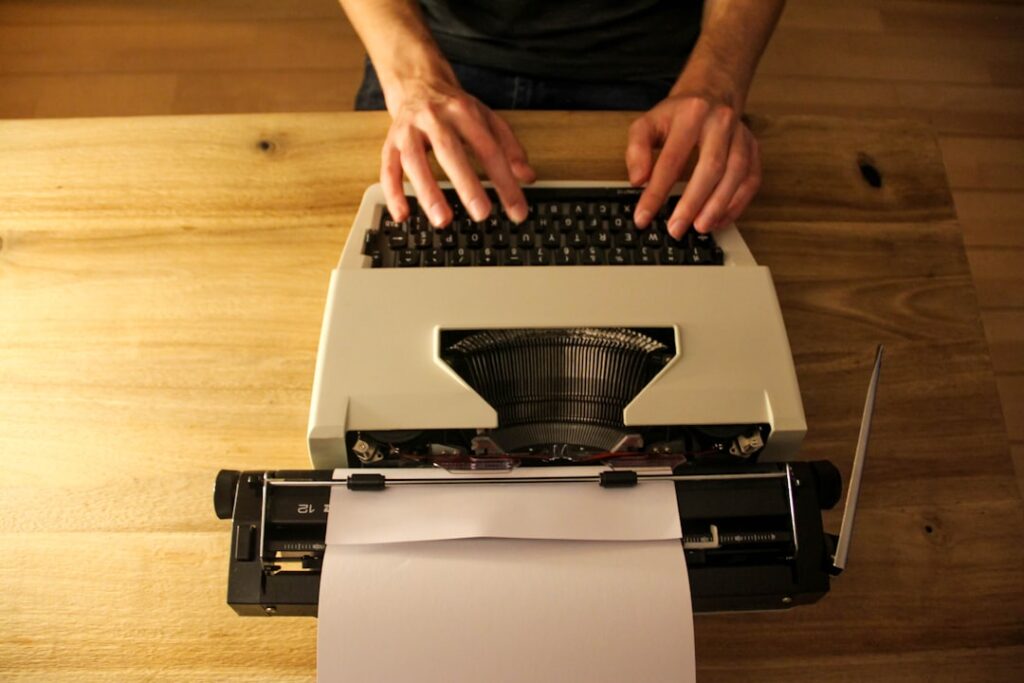
Learn effective strategies to fix false positive errors in macOS Monterey’s spellchecker and enhance your grammar checking experience.
Introduction
For writers, students, and professionals alike, a reliable spellchecker is an indispensable tool. However, many users of macOS Monterey have reported encountering false positives in the system’s grammar checker. These inaccuracies can disrupt the writing flow, leading to frustration and inefficiency. In this guide, we’ll explore effective strategies to resolve these macOS spellchecker issues and improve your overall grammar checking experience.
Understanding macOS Monterey’s Spellchecker
macOS Monterey’s built-in spellchecker and grammar tool are designed to help users produce error-free text. By leveraging advanced algorithms, the system identifies and suggests corrections for spelling mistakes and grammatical errors. Although generally effective, some users experience false positives—instances where the spellchecker incorrectly flags correct words or phrases as errors.
Common False Positives Issues
False positives can manifest in various ways, such as:
- Proper Nouns: Names of people, places, or specialized terms that the spellchecker doesn’t recognize.
- Technical Jargon: Industry-specific terminology that isn’t included in the default dictionary.
- Creative Writing: Slang, colloquialisms, or creative expressions that aren’t standard.
- Homophones: Words that sound alike but have different meanings and spellings.
These issues can hinder productivity, especially when writing academic papers, professional documents, or creative content.
Strategies to Resolve False Positives
1. Update macOS
Ensuring your system is up-to-date is the first step in resolving spellchecker issues. Apple frequently releases updates that address bugs and improve system functionality.
- How to Update:
- Go to System Preferences > Software Update.
- Click Update Now if a new version is available.
2. Customize the Spellchecker
Tailoring the spellchecker to your specific needs can significantly reduce false positives.
- Add Custom Words:
- Right-click on the flagged word.
-
Select Learn Spelling to add it to your personal dictionary.
-
Adjust Language Settings:
- Navigate to System Preferences > Keyboard > Text.
- Ensure the correct language is selected for your document.
3. Add Words to Dictionary
For specialized terms or proper nouns, manually adding them to the dictionary can prevent future false alarms.
- Steps to Add Words:
- Open the Dictionary app.
- Add the new word under the appropriate language section.
4. Use Alternative Grammar Checkers
Sometimes, the built-in tool may not meet all your needs. Integrating alternative grammar checkers can complement macOS’s spellchecker.
- Recommended Tools:
- Grammarly: Offers comprehensive grammar and style suggestions.
- ProWritingAid: Provides detailed reports on writing quality and clarity.
These tools can work alongside macOS’s spellchecker to offer a more robust proofreading experience.
5. Reset Spellchecker Settings
If problems persist, resetting the spellchecker settings to default can help eliminate any configuration issues.
- How to Reset:
- Open Terminal.
- Enter the command:
defaults delete -g NSUserDictionaryReplacementItems - Restart your Mac for the changes to take effect.
Best Practices for Using Spellcheckers
To maximize the effectiveness of macOS’s spellchecker and minimize false positives, consider the following best practices:
- Regularly Update Your Dictionary: Keep your personal dictionary updated with new words and terms.
- Proofread Manually: Spellcheckers are tools, not replacements for thorough proofreading.
- Customize Settings: Tailor the spellchecker to your writing style and specific requirements.
- Combine Tools: Use multiple grammar checkers to catch a broader range of errors.
Conclusion
False positives in macOS Monterey’s grammar checker can be a nuisance, but with the right strategies, you can enhance your spellchecking experience. By updating your system, customizing settings, and integrating alternative tools, you can ensure that your writing remains smooth and error-free.
Ready to take your writing to the next level? Visit Unlazy Writer for an AI-enhanced writing assistant that seamlessly integrates grammar correction, fact-checking, and research tools—all designed to support and elevate your writing process.